Stage timer · Windows & Mac
Every speaker on time. Every screen in sync.
ShowsClock runs on your show computer and puts the countdown, the running order and your cues on every screen in the room: confidence monitors, projectors, tablets and OBS. Drive it from the Controller or straight from a Stream Deck.
Everything included in the trial. No cloud account. Works on your local network, even with no internet.
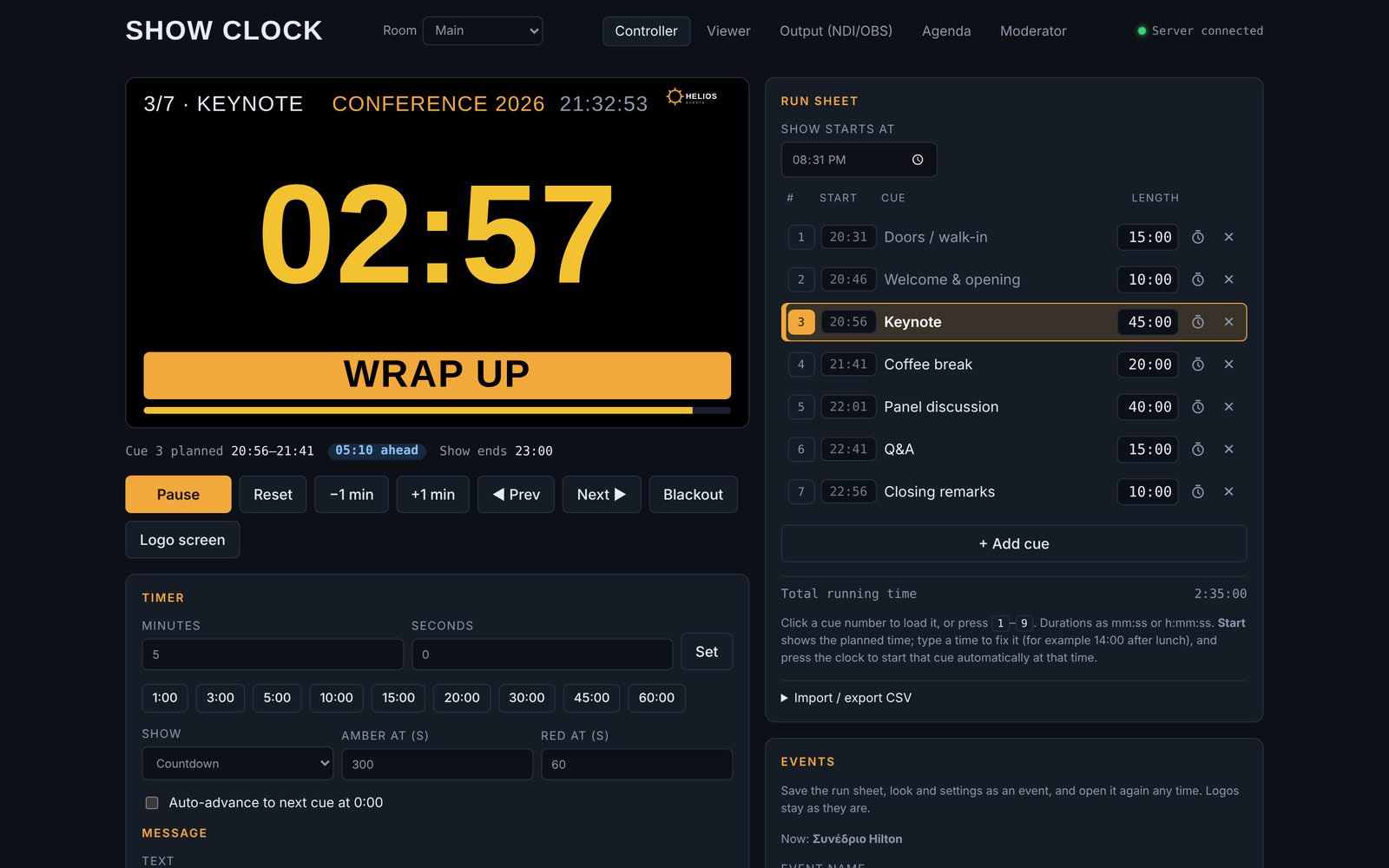
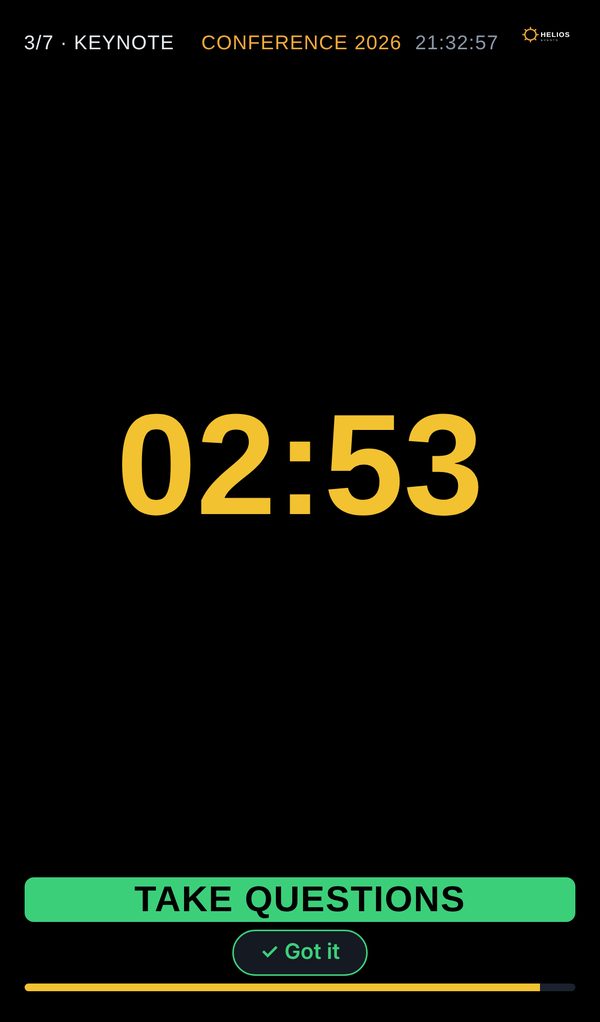
The real Viewer, as the presenter sees it: green, then amber, then red, with messages from the operator.
One show, five screens
You run the show. Everyone else just looks.
Only the show computer runs ShowsClock. Every other device opens a link or scans a QR code, so presenters and stage managers install nothing.
FOR THE OPERATOR
Controller
Start, pause, add time, step through cues, send messages and pick which display shows what.
FOR THE PRESENTER
Viewer
The big countdown for the confidence monitor, a tablet on the lectern or the presenter's laptop.
FOR VIDEO
Output
A clean feed on black, green, blue or a transparent background for OBS, vMix or your switcher.
FOR THE CREW
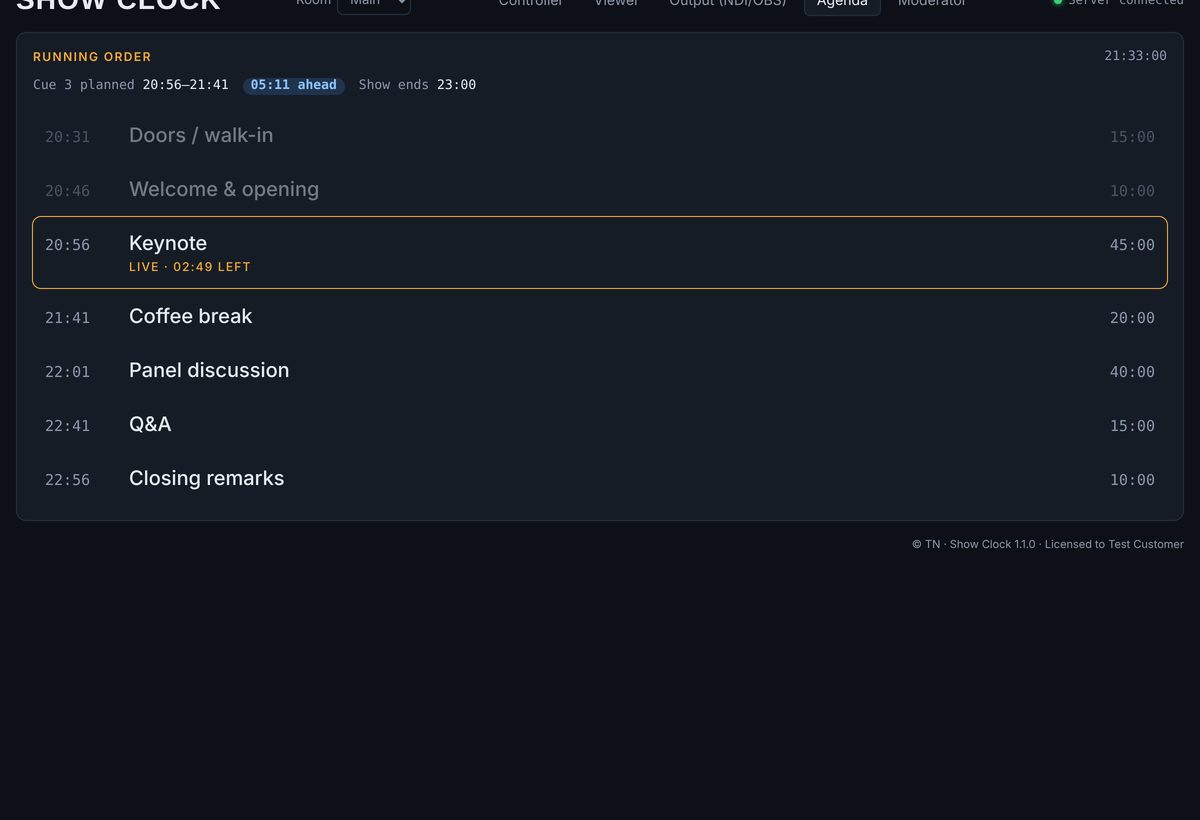
Agenda
The running order with start times, highlighting the cue that's live and how long it has left.
FOR THE HOST
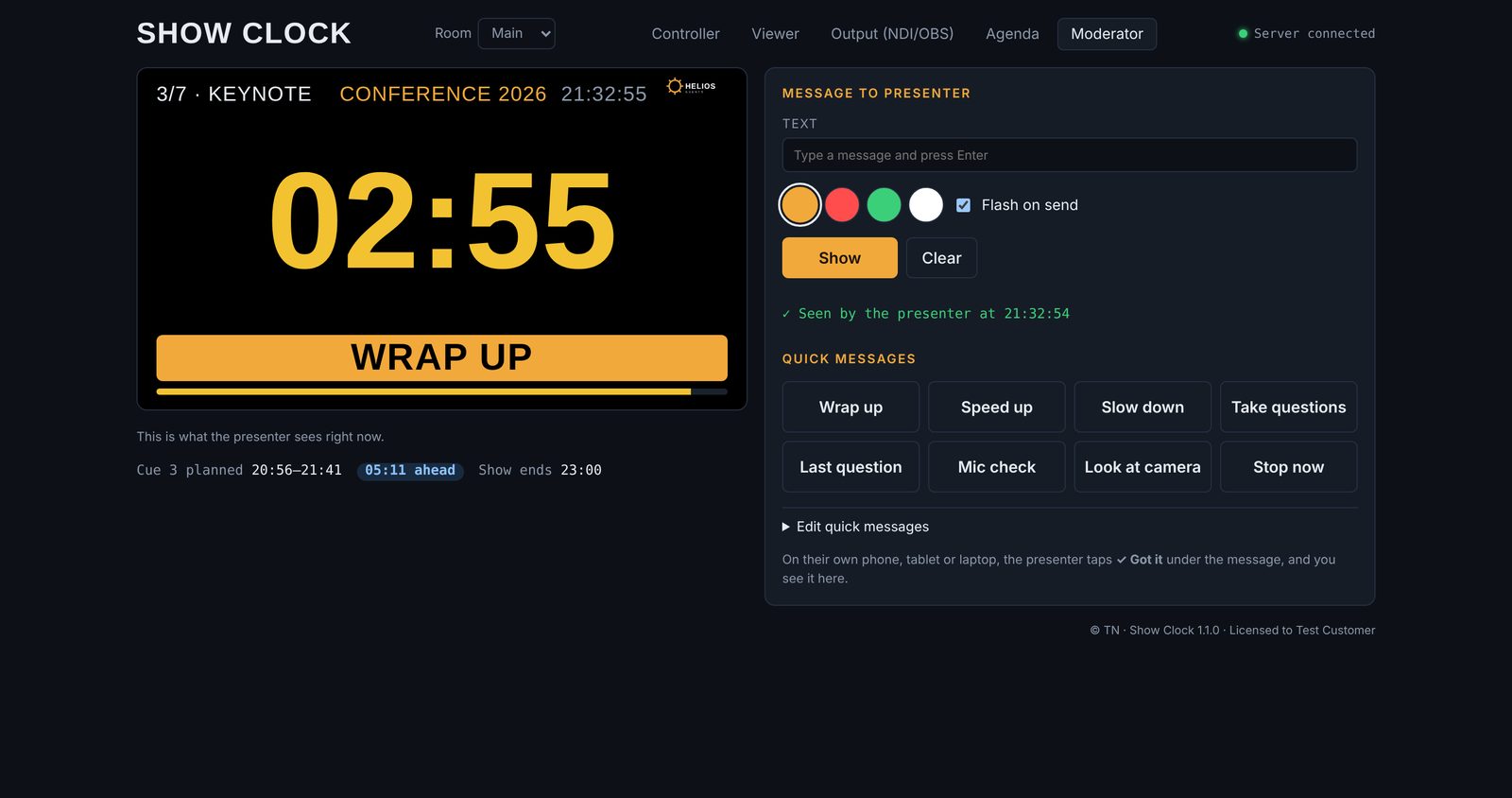
Moderator
A message desk: send "Last question" or "Look at camera" to the stage, and see when the presenter has read it.
Built for the way shows actually run
Run sheet from Excel
Paste or import a CSV of cue names and durations. Next, previous or jump to any cue, by hand or automatically at 00:00.
Warnings you can't miss
Amber and red at the times you set. At 00:00, count overtime or hold at zero, flash or stay steady, and sound a bell, beep, buzzer or siren.
Full screen on any display
Send the Viewer, Output or Agenda to a monitor or projector plugged into the show computer with one click. Esc closes it.
Messages to the stage
Wrap up, Speed up, Stop now, or your own text, in amber, red, green or white, with an optional flash.
Your event, your look
Add the client's logo and the event name. Hide the clock, cue name or progress bar when the screen should show only the time.
Phones and tablets in seconds
Every screen has a QR code. Scan it on the same Wi-Fi and the device follows the show, to the second.
Ahead or behind, at a glance
Every cue gets a planned start time. ShowsClock tells you “4:30 behind”, when the show will end, and can start a cue by itself at a set time, like 14:00 after lunch.
Several rooms, one computer
Parallel sessions? Each room has its own timer, run sheet, screens and Stream Deck page, all from the same show computer.
Direct NDI, with alpha
ShowsClock sends the Output as an NDI source, in 720p, 1080p or 4K. With a transparent background it keys straight over your video in vMix, OBS or TriCaster.
Saved events
Save each show's run sheet, look and settings by name, open it next time, or send it as a file to another operator.
PIN for hotel networks
Everyone can see the screens; only people with the PIN can control them. The show computer itself never asks.
Over PowerPoint, on the projector
A transparent timer floats over the slides on any display, and clicks still reach the presentation underneath.
Video guides
See it in under a minute
Three short videos of the real app. No sound needed: the captions tell you what's happening.
Στα ελληνικά: Πρώτα βήματα · Μηνύματα με επιβεβαίωση · Αίθουσες και events
Stream Deck · Bitfocus Companion
Its own Companion module
Import the ShowsClock module into Companion 4.0 or newer, add a connection, and drag ready-made buttons onto your Stream Deck: the live time in green, amber and red, every cue with its name and countdown, messages, blackout and how far ahead or behind you are.
Everything else is one HTTP request or OSC message away, so it fits into the control system you already run.
PAUSE
29:41
25:00
OUT
KEYNOTE
UP
UP
NOW
MSG
How it works
From order to showtime
-
1
Install and try
Run the installer on the computer that will drive the show, Windows or Mac. You have 14 days with everything.
-
2
Send your machine code
When you buy, send the machine code shown under ShowsClock app → Enter licence key, with your name or company.
-
3
Paste your key
You get a licence key for that computer. Paste it once and ShowsClock is ready for every show after.
-
4
Share the screens
Scan the QR codes on the tablets, send full-screen timers to your displays and import the Companion buttons.
What's new
Version 1.1
A free update for everyone with a licence: install it over your current version and your key, run sheet and logos stay.
- Planned start times, ahead/behind and show end time
- Cues that start by themselves at a set time
- Several rooms on one show computer
- Saved events: save, open, export, import
- Direct NDI output with alpha
- PIN for control from other devices
- Your own quick messages, and “Got it” from the presenter
- Transparent timer over slides on any display
- A notice in the app when a new version is out
- 14-day free trial, everything included
Free trial · version 1.1.0
Download and try it free
Install it on your show computer and use everything for 14 days. After that it keeps working with a small TRIAL mark on the screens until you enter a licence key.
Not sure which Mac you have? Apple menu → About This Mac → Chip.
First start on Windows: if you see “Windows protected your PC”, click More info → Run anyway.
First start on a Mac: drag ShowsClock into Applications and open it from there. If it says it “can’t be opened”, click OK, then go to System Settings → Privacy & Security → Open Anyway. Step by step
Licence
One licence per show computer
You pay for the computer that runs ShowsClock. Every display, tablet, phone and Stream Deck connected to it is included.
Try everything free for 14 days first. Need it for a single event? Ask about a licence that runs until a date you choose.
Need licences for several computers, a rental fleet or a venue? Email us and we'll put together an offer.
ShowsClock licence
Email us for a price. We reply within a day with your licence options.
- Windows 10 / 11 or macOS 11+ (Apple Silicon and Intel)
- All five screens on as many devices as you need
- Bitfocus Companion module and ready-made Stream Deck pages
- Rooms, saved events, schedule and PIN
- Direct NDI and OBS output with transparent background
- Runs offline: no account, no subscription
- Free updates for version 1
Questions
Does it need the internet?
No. ShowsClock runs on your local network. The only thing that needs internet is drawing the QR codes; without it, type the address shown in the Controller.
Do presenters need to install anything?
No. Their tablet, phone or laptop opens the Viewer in a web browser on the same network. Displays plugged into the show computer get full-screen timers straight from the Controller.
Which Companion version do I need?
Bitfocus Companion 4.0 or newer, with the ShowsClock module from the download page. Any controller that can send HTTP or OSC works too.
How do I get the timer into NDI or OBS?
Turn on NDI in the Controller and the Output appears on your network as an NDI source, with alpha when its background is transparent. In OBS you can also add the Output as a Browser source.
What happens after the 14-day trial?
ShowsClock keeps working, with a small TRIAL mark in the corner of the screens. Enter a licence key and it disappears; nothing needs reinstalling.
Can I run two rooms at once?
Yes. Add rooms in the Controller; each has its own timer, run sheet, links, displays and Stream Deck page, on one licence.
Can people on the venue Wi-Fi change my timer?
Not if you set a PIN. Screens stay open to everyone; controlling the timer from another device then needs the PIN.
My Mac says “ShowsClock can’t be opened”
macOS shows this for apps that don’t come from the App Store. You only need to do this once:
- Open the .dmg and drag ShowsClock into the Applications folder. Don’t run it from inside the .dmg.
- Open ShowsClock from Applications. When the message appears, click OK.
- Go to System Settings → Privacy & Security, scroll down and click Open Anyway next to “Show Clock was blocked”. Confirm with your password.
- Open ShowsClock again and click Open.
Still not opening? Open Terminal, paste xattr -cr "/Applications/Show Clock.app", press Enter and open ShowsClock again. Also check you downloaded the right file: Apple Silicon (M1–M4) or Intel.
What if I replace my computer?
Send us the new machine code and we'll move your licence to it.
Ready for your next show?
Email us to order a licence or ask a question. We usually reply within a day.